
How to Reset Network Settings on Any Device
Your phone connects to your home WiFi but not the one at work. Your laptop says “connected” yet nothing loads. A Bluetooth headset that paired fine yesterday suddenly refuses. When connection problems survive every restart, the cause is often a tangle of old saved networks, outdated settings, and half-remembered configurations — and the cleanest cure is to reset the network settings.
Resetting them sounds drastic, but it isn’t. It wipes only connection-related settings and gives your device a fresh start, while your photos, apps, and files stay exactly where they are. This guide explains what the reset does on each platform, the four gentler fixes to try first, and the exact steps for iPhone, Android, Windows, and Mac.
What a Network Reset Actually Does
A network reset returns every connection setting to its factory state. Depending on the device, that usually means:
- Saved WiFi networks and their passwords are deleted — you’ll rejoin networks and enter passwords again
- Bluetooth pairings are removed — headsets, watches, and car connections need re-pairing
- VPN and APN settings are cleared — work VPNs must be set up again
- Cellular settings return to defaults — data roaming and preferred network choices reset
- On Windows, network adapters are removed and reinstalled, and related components are rebuilt
What It Does NOT Erase
This is the part people worry about, so let’s be clear: a network reset does not delete your photos, videos, apps, messages, contacts, accounts, or files. It is not a factory reset.
Try These Four Gentler Fixes First
A reset is a solid tool, but it costs you those ten minutes of re-connecting. These quicker fixes solve many problems without it:
- Restart the device. It sounds obvious because it works — a full power-off clears temporary connection glitches.
- Toggle Airplane mode. Turn it on for 15 seconds, then off. This forces every radio to reconnect from scratch.
- Forget and rejoin the network. In WiFi settings, tap the problem network, choose “Forget,” then join it again with the password. If you don’t remember the password, your router or another connected device can show or share the WiFi password in seconds.
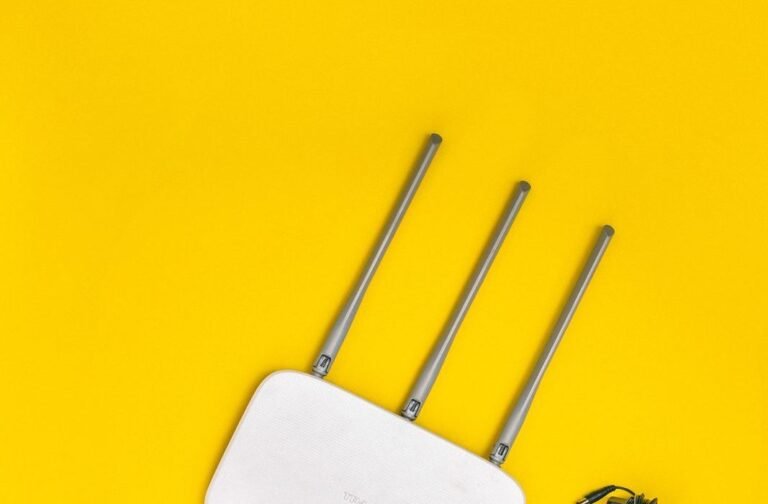
- Restart the router. Unplug it for 30 seconds. If every device struggles with the same network, the router — not your device — is the problem, and resetting your device won’t help.
If the problem sticks to one device across several networks, or survives all four fixes, it’s reset time.
How to Reset Network Settings on iPhone
- Open Settings → General → Transfer or Reset iPhone.
- Tap Reset.
- Tap the network reset option.
- Enter your passcode and confirm.
Your iPhone restarts. Afterwards, all saved WiFi networks and passwords, cellular settings, and VPN configurations are gone. Your eSIM is not deleted — erasing an eSIM is a separate, deliberate choice found elsewhere in settings.
How to Reset on Android
Menu names vary slightly by brand, but the path is similar:
- Open Settings and search for Reset at the top (the fastest route on any Android).
- On most phones: System → Reset options → Reset Wi-Fi, mobile & Bluetooth.
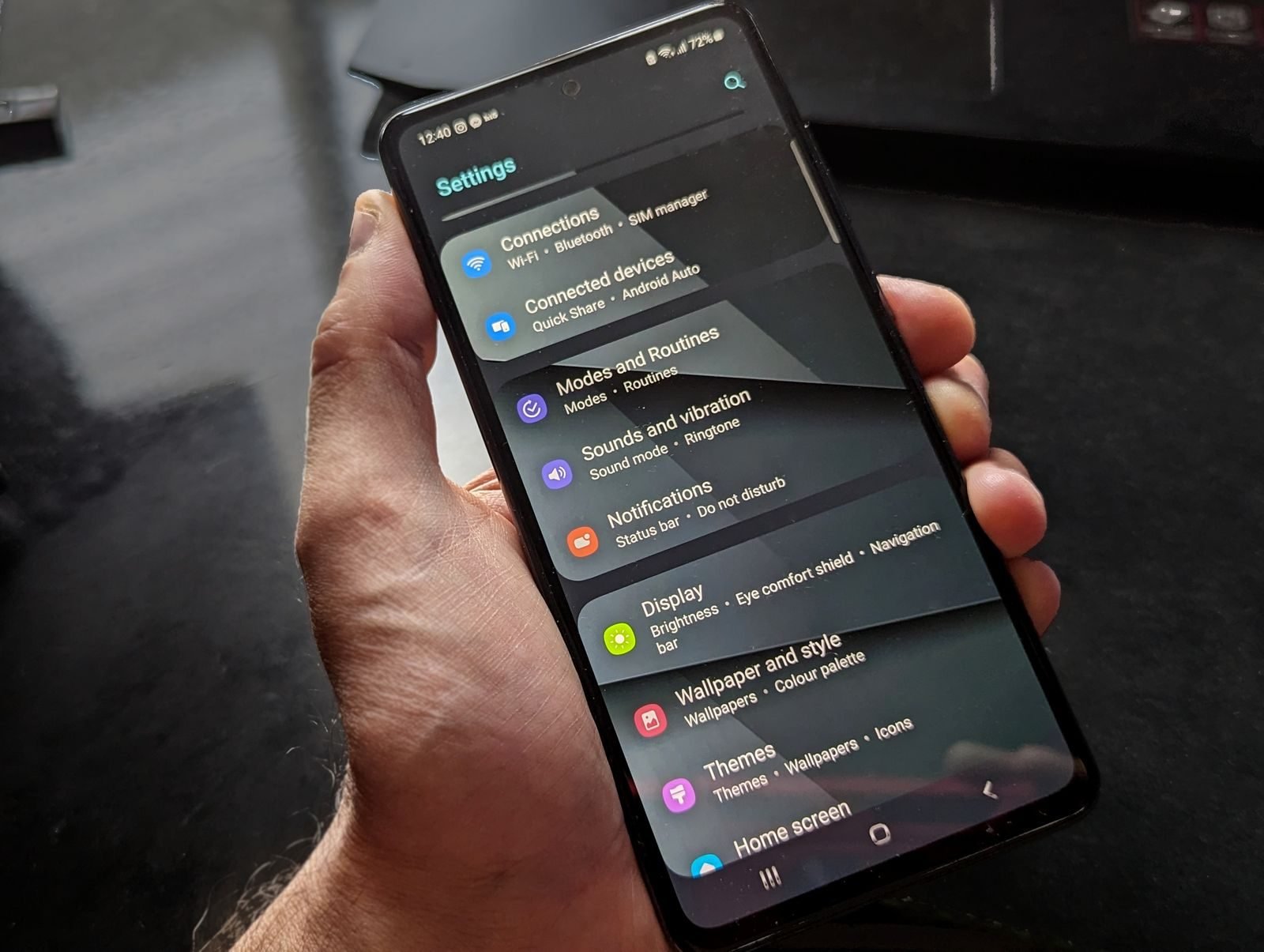
- On Samsung: General management → Reset, then choose the network reset.
- Confirm with Reset settings (enter your PIN if asked).
The phone forgets saved WiFi networks and passwords, removes Bluetooth pairings, and restores mobile data settings to defaults. Apps and files are untouched.
How to Reset on Windows
Windows offers a full network reset that removes and reinstalls every network adapter:
- Open Settings → Network & internet → Advanced network settings.
- Click Network reset.
- Click Reset now and confirm. Your PC restarts within a few minutes.
After the restart, you’ll need to rejoin your WiFi network (the password is required again) and reconfigure any VPN software.
A lighter option first: if only DNS or address assignment seems broken, open Terminal or Command Prompt as administrator and run these three commands, one at a time:
ipconfig /flushdns
netsh winsock reset
netsh int ip reset
Restart the PC afterwards. This clears the DNS cache and rebuilds the core networking components without removing your saved networks.
How to Reset Network Settings on a Mac
Macs don’t have a single network reset button, but the two steps below cover the same ground:
- Forget the problem network: open System Settings → Wi-Fi, click Details next to the network (or find it under known networks), and choose Forget This Network. Then rejoin it fresh.
- Renew the address lease: in the same Details window, open TCP/IP and click Renew DHCP Lease.
For deeper problems, removing and re-adding the Wi-Fi service under System Settings → Network achieves a fuller reset, but the two steps above fix the great majority of Mac connection issues.
After the Reset: Your 10-Minute Checklist
- Rejoin your home WiFi — you’ll need the password. If you also reset or renamed your router recently, make sure you’re joining the current name; if you’re not sure what state the router is in, our walkthrough on changing your WiFi name and router settings shows you exactly where those settings live.
- Re-pair Bluetooth essentials — earbuds, watch, car.
- Re-add your VPN if you use one for work.
- Check cellular settings — re-enable data roaming before a trip if you use it.
- Test the original problem — open the network or device that failed before. In most cases, it’s fixed.
When a Reset Won’t Fix It
If a freshly reset device still can’t connect, look beyond the device: a router that drops every device points to the router or your internet provider; a phone that fails only on cellular may have a carrier or SIM issue; and a device damaged by water or a drop may have a hardware fault no setting can repair. A reset rules out software — which is valuable information in itself before you pay for a repair.
Frequently Asked Questions
Will resetting network settings delete my photos or apps?
No. It removes only connection settings: saved WiFi networks and passwords, Bluetooth pairings, VPN setups, and cellular preferences. Your photos, apps, messages, and files are completely untouched.
Will I lose my eSIM if I reset them?
No. On iPhone, resetting them leaves your eSIM in place. On Android phones, the network reset likewise keeps your eSIM; erasing eSIMs is a separate option that you would have to choose deliberately. Your phone number keeps working throughout.
Will I need my WiFi password after the reset?
Yes. Every saved WiFi password is erased, so you’ll enter passwords again when rejoining networks. If you’ve forgotten yours, another connected phone or computer can display it — or check the sticker on your router if the password was never changed.
What’s the difference between resetting them and a factory reset?
A network reset clears only connection settings and takes a few minutes to recover from. A factory reset erases everything — apps, accounts, photos, all of it — and returns the device to its out-of-box state. Never choose a factory reset for a WiFi problem until a network reset has been tried.
How long does a network settings reset take?
The reset itself takes one to five minutes, including the restart. Rejoining your main WiFi network and re-pairing a few Bluetooth devices typically adds about ten minutes. Everything else on your device works normally throughout.
Bottom Line
Resetting network settings is the reliable cure for stubborn connection problems that survive restarts: it erases saved networks, passwords, pairings, and VPN settings while leaving your data completely alone. Try the four gentler fixes first, follow the steps for your platform, and spend ten minutes reconnecting afterwards. If the problem is still there after a reset, you’ve proven it isn’t your settings — and that answer alone saves real time and money.
3 Comments