
How to Share WiFi Password on Any Device
Every host knows the moment: a guest arrives, asks for the WiFi password, and you start spelling out something like “Sunset-4821-exclamation-point” while they type it wrong twice. There is a much better way. Almost every modern phone and computer can share a WiFi password in a few seconds — often without you saying or typing a single character.
This guide covers how to share your WiFi password from an iPhone, an Android phone, a Windows PC, and a Mac, plus the QR code trick that works with almost anything, and how to share safely with guests.
The Fastest Method: iPhone to iPhone
If you and your guest both use iPhones, Apple has a built-in sharing feature that feels like magic — and it works for sharing to a Mac or iPad too.
Before it works, both devices need:
- WiFi and Bluetooth turned on
- Each other’s Apple Account email address or phone number saved in Contacts
- Both devices unlocked and near each other
- Your iPhone already connected to the network
Then:
- On your guest’s iPhone, open Settings → Wi-Fi and tap your network name.
- The password entry screen appears. Don’t type anything.
- On your iPhone (already connected to that network), a “Share Password” pop-up appears within a few seconds.
- Tap Share Password, then Done.
Your guest’s iPhone fills in the password by itself and connects. Your password is never shown on screen, which makes this the safest sharing method on any platform.
No pop-up? Lock and unlock your iPhone, move the devices closer, and make sure your guest’s contact card really contains the email or number tied to their Apple Account — that missing contact entry is the most common reason the pop-up never shows.
Sharing From an iPhone to Anything Else: The QR Code
The pop-up trick only works between Apple devices. For everything else, newer iPhones can show a QR code of your network:
- Open the Passwords app (on iPhones with iOS 18 or later).
- Tap Wi-Fi, then tap your network.
- Tap Show QR Code.
- Let your guest point their phone camera at it — they connect instantly, no typing.
Older iPhones don’t have this built in; for those, use the QR method described further below, or share to the guest’s Apple device with the pop-up and let them read the password from their own settings if another device needs it.
Sharing From an Android Phone: QR Code Built In
Most Android phones (Android 10 and later, including Samsung and Pixel) share WiFi with a QR code:
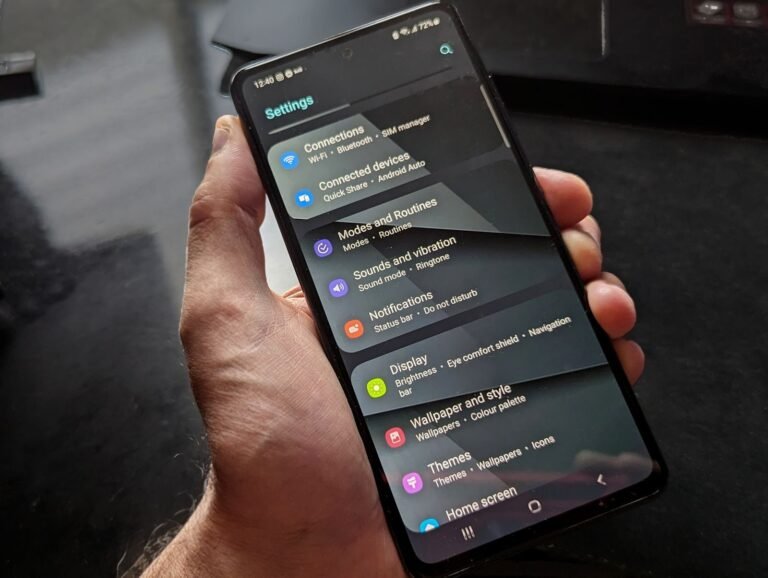
- Open Settings → Network & internet (on Samsung: Connections) → Wi-Fi.
- Tap your connected network (on Samsung, tap the gear icon next to it).
- Tap Share (you may need to confirm with your fingerprint or PIN).
- A QR code appears, and on most phones the password is also printed under it in plain text.
Your guest scans the code with their camera and joins. iPhone cameras read these codes perfectly well, so this method covers Android-to-iPhone sharing. Many Android phones also offer a “Nearby Share / Quick Share” button on the same screen, which sends the connection to a nearby Android phone without any scanning.
Sharing From a Windows PC
Windows can’t beam a password to a guest’s phone, but it can show you the password of the network you’re connected to, which you can then read out or type into their device:
The simple way (Windows 11):
- Open Settings → Network & internet → Wi-Fi.
- Tap your network name to open its properties.
- Next to Wi-Fi network password, click View and confirm — the password appears.
The command way (works on any Windows version):
- Open the Start menu, type
cmd, and open Command Prompt. - Type this command, replacing the name with your network’s name, and press Enter:
netsh wlan show profile name="YourNetworkName" key=clearFind Key Content in the results — that’s your WiFi password.
Sharing From a Mac
If a guest’s Apple device is trying to join, the iPhone pop-up method above works — your nearby, unlocked iPhone can approve a Mac too.
To simply see the password on your Mac:
- Open the Passwords app (macOS Sequoia or later) → Wi-Fi → your network → reveal the password.
- On older macOS versions, open Keychain Access, search for your network name, open it, and tick Show password (you’ll enter your Mac password to confirm).
The Universal Method: A QR Code for Your Network
A WiFi QR code works for guests whose devices can’t use any of the built-ins. Android and iPhone already generate one safely from Settings, as shown above — always prefer those built-in codes.
If you use an online QR generator instead, be careful: the code contains your actual password, and a shady generator site could keep it. Only use a well-known generator, never enter the password of a network that isn’t yours to share, and treat the printed code like the password itself. A good use: print the QR code and stick it on the fridge or in a guest room, so visitors connect without bothering you.
Sharing Safely: Three Habits Worth Having
Sharing your password is convenient, but it hands someone the keys to your home network. Three habits keep that safe:
- Use the guest network for visitors. Almost every router offers a guest network with its own name and password. Guests get internet, but they can’t see your computers, printers, and smart devices — and you can change the guest password anytime without reconnecting all your own devices.
- Change the password occasionally. After a big party, a departing roommate, or a contractor visit is a good moment. When you update the password, our guide on how to change your WiFi name and settings walks through the same settings page, so you can refresh both in one visit.
- Remove strangers in the router app. Most router apps list every connected device. If a name you don’t recognize keeps showing up, change the password — that disconnects everyone, and only people you re-share with get back in.
When Sharing Doesn’t Work
If a guest has the correct password but still can’t join, the problem usually isn’t the password. Try these in order: toggle the guest device’s WiFi off and on, “forget” the network and join fresh, restart the device, and restart the router. If one specific device refuses every network it touches, its saved network settings may be corrupted — in that case, resetting its network settings clears the damage and lets it start over.
Frequently Asked Questions
Is it safe to share my WiFi password?
Sharing with people you trust, using the built-in tools, is generally safe — the iPhone pop-up method never even displays the password. The risk is long-term: anyone who has it can join your network whenever they’re nearby. For short-term visitors, a guest network with its own password is the safest choice.
Why doesn’t the Share Password pop-up appear on my iPhone?
The usual causes: Bluetooth is off on one device, the devices aren’t near each other, your guest’s Apple Account email or number isn’t saved in your Contacts (or yours in theirs), or your iPhone isn’t connected to that network yet. Check those four things first — one of them fixes it almost every time.
Can I share my WiFi password with a laptop?
Yes. If the laptop is a Mac, the iPhone pop-up can share directly. For a Windows laptop, the quickest route is a QR code if the laptop has a camera, or simply read the password from your phone: on Android it’s printed under the QR code, and on Windows you can view a connected network’s password in Settings.
Do WiFi QR codes expire?
No. A WiFi QR code is simply your network name and password stored in a picture. It stays valid until you change the password or the network name. That’s exactly why you should only print or post one for a guest network, not your main one.
Can guests on my WiFi see my files or devices?
On your main network, possibly — other devices can often discover shared folders, printers, and smart TVs. A guest network is designed to prevent this by isolating visitors from your own devices. If you regularly have visitors, setting up the guest network once is worth it.
Bottom Line
You rarely need to spell out your WiFi password again. iPhone owners can share with one tap using the pop-up or a QR code from the Passwords app, Android shows a shareable QR code right in WiFi settings, and Windows and Mac can reveal a connected network’s password whenever you need it. For visitors, put them on a guest network instead — they’ll get online in seconds, and your own devices stay private.



2 Comments