How to Improve Your WiFi Signal: 10 Ways That Actually Help
If your WiFi is slow or keeps dropping in parts of your home, the most likely cause is not your internet plan — it is where the signal has to travel. WiFi is radio, and radio weakens with distance, walls, floors, and interference from other electronics. The good news is that most homes can improve their WiFi signal noticeably with free changes, starting with where the router sits.
Work through the ten ways below roughly in order. The first few cost nothing and fix the majority of problems; the last ones involve settings or extra hardware for the stubborn cases.
1. Move the Router to the Centre of Your Home
Routers broadcast in all directions, roughly in a sphere. A router pushed into a corner of the house — where the internet line happens to enter — sends half its signal into the garden or the neighbours’ wall. Moving it as close to the centre of the home as the cabling allows spreads the signal evenly, and the far rooms stop being the unlucky edge of the circle. Even shifting it a room or two inward often makes a bigger difference than any setting you can change.
2. Raise It Up, Out in the Open
WiFi travels better slightly downward and outward than through furniture. A router on the floor, inside a cabinet, or behind the television is muffled before it starts. Place it on a shelf or table, roughly at chest height or higher, standing in the open. Closets and metal TV units are about the worst homes a router can have.
3. Keep It Away from Walls, Metal, and the Microwave
Thick walls — especially brick, concrete, and walls with metal in them — absorb signal rather than letting it through. Large metal objects (fridges, filing cabinets, radiators, mirrors with metal backing) reflect and block it. Kitchens are doubly bad: metal appliances plus a microwave oven, which leaks interference on the same 2.4 GHz band many routers use. You cannot always avoid walls, but avoid parking the router right beside the biggest obstacles.
4. Point the Antennas Properly
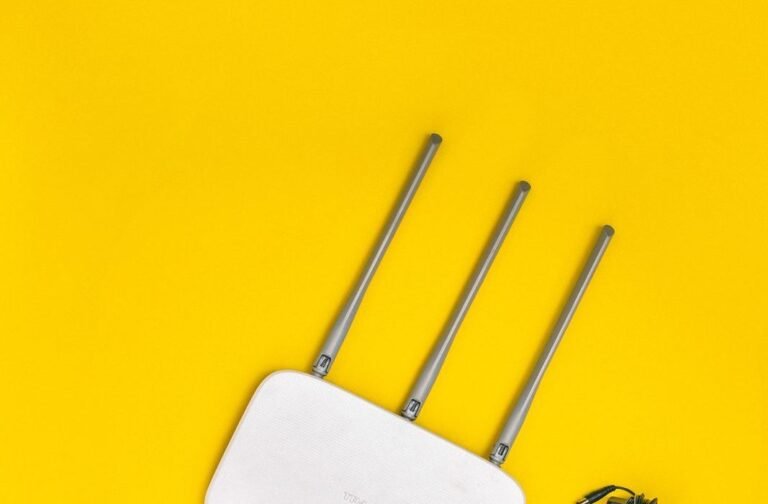
If your router has adjustable external antennas, their position matters. Signals spread out perpendicular to the antenna, so a vertical antenna covers the same floor well, while one antenna tilted horizontally helps reach a different floor. For a single-storey home, all vertical is fine. For a two floors, try one vertical and one angled at about 45 degrees. It is a small tweak, but it is free and takes ten seconds.
5. Shorten the Distance — and Mind the Floors
Every metre and every obstacle between you and the router costs signal, and floors are harsher than walls because of the materials in them (concrete, underfloor heating pipes, metal joists). If the room you work in is far from the router, consider running a network cable part of the way and repositioning the router closer to where the WiFi is actually used — or accept that the most distant rooms need help from way 10 below. Testing is easy: stand beside the router and run a speed test, then repeat in the problem room. The difference shows how much the journey, not your plan, is costing you.
6. Cut Down Interference from Other Devices
On the common 2.4 GHz band, your router shares the air with baby monitors, Bluetooth devices, wireless cameras, older cordless phones — and every neighbour’s router. If you live in a flat or a dense street, congestion is likely. Many routers also offer a 5 GHz band: it is faster and less crowded, though it does not travel as far through walls. As a rule of thumb, use 5 GHz for devices near the router that need speed, and 2.4 GHz for distant or smart-home devices that need reach.
7. Reboot the Router Properly
It is a cliché because it works. Routers are small computers that run for months without a rest, and a proper restart clears stuck connections and lets the router re-pick its settings. Switch it off, wait a full 30 seconds, and switch it back on, then give it a few minutes to reconnect fully. If your router has an automatic reboot schedule in its settings, setting it to restart once a week in the middle of the night keeps it fresh without you thinking about it.
8. Update the Router’s Firmware
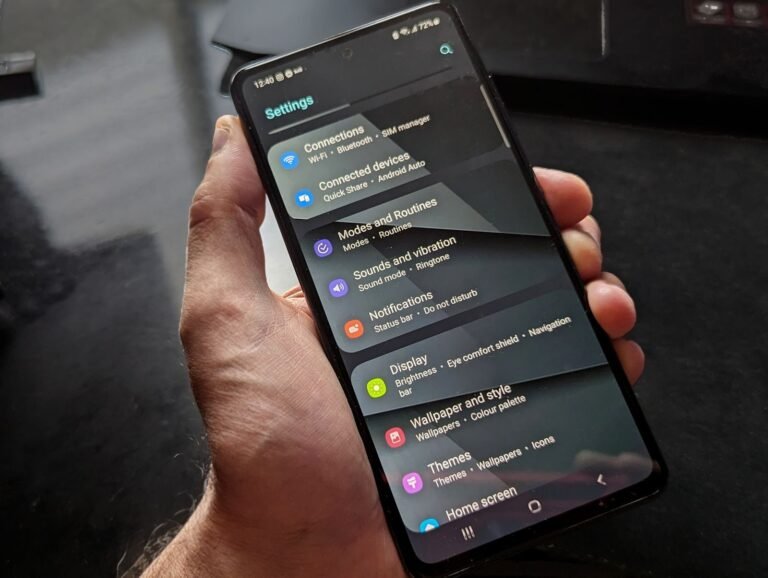
Firmware is the router’s own software, and updates fix bugs, improve stability, and sometimes improve how the radio performs. Log in to the router’s settings page (the address and login are usually printed on a sticker on the router itself) and look for a firmware or update option; many newer routers can check and update themselves. While you are in the settings, it is also a good moment to check your network name and password are your own — our step-by-step guide on how to change your Wi-Fi name walks through that part if you have never opened these settings before.
9. Change to a Less Crowded Channel
Routers talk on numbered channels within each band, and if several nearby networks use the same one, they effectively queue up to talk over each other. Free WiFi analyser apps for your phone can show which channels your neighbours occupy. In the router’s wireless settings, you can then set your channel manually to one of the quieter options — on 2.4 GHz, channels 1, 6, and 11 are the standard choices because they do not overlap each other. Many routers set to “auto” handle this well already, so treat a manual change as a fix to try when analyser results show real crowding.
10. Add an Extender or a Mesh System — Honestly Assessed
If the home is large, spread over several floors, or built from thick masonry, placement tricks may genuinely not be enough. Two options exist, and they are not equal:
- A WiFi extender (repeater) picks up the existing signal and rebroadcasts it. It is cheap and can help one dead room, but it must sit where the signal is still decent, it usually halves the available speed on the repeated signal, and it often creates a second network name to hop between. A reasonable budget fix for a small problem.
- A mesh system replaces or works with your router using two or three matched units placed around the home. They form one network with one name, hand your devices between units as you move, and are noticeably more reliable — at a noticeably higher price. For most larger homes with real dead zones, mesh is the honest long-term answer.
Whichever you choose, place extra units halfway between the router and the dead zone — not inside the dead zone itself, where there is nothing worth repeating.
When the Problem Is the Plan Itself
Sometimes the WiFi is fine and the ceiling is your internet package: if speeds are slow even standing next to the router with a cable-connected test, no placement trick will fix that. Compare what you measure against the speed your plan promises. Consistently far below it, even by cable, is a matter for your provider — faulty line, outdated supplied router, or a plan that no longer matches a house full of streaming, calls, and downloads. It is worth confirming before spending money on hardware to solve the wrong problem.
Frequently Asked Questions
Does restarting the router really improve the signal?
It can. A restart clears stuck processes and lets the router re-select its channel and reconnect devices cleanly. It will not increase your plan’s speed, but it often fixes gradual slowdowns and random dropouts.
Is 5 GHz WiFi better than 2.4 GHz?
For speed at short and medium range, yes — 5 GHz is faster and less crowded. For range through walls and floors, 2.4 GHz travels better. Most homes do best using both, each where it suits.
Where is the single worst place to put a router?
On the floor in a corner, inside a closed cabinet, or in the kitchen among metal appliances. All three muffle or block the signal before it reaches the rooms that need it.
Will aluminium foil or a homemade reflector help?
Makeshift reflectors can redirect some signal in one direction while weakening it elsewhere, and results are unpredictable. The placement fixes above are more reliable and cost the same: nothing.
Should I buy an extender or a mesh system?
For one small dead spot on a budget, an extender is acceptable. For a larger home, multiple floors, or several dead zones, a mesh system is the more dependable fix — it is one seamless network rather than a patch.